Creating/editing draft orders
With POSify, you are able to create and edit Draft Orders with customized products and cart properties.
Creating a draft order
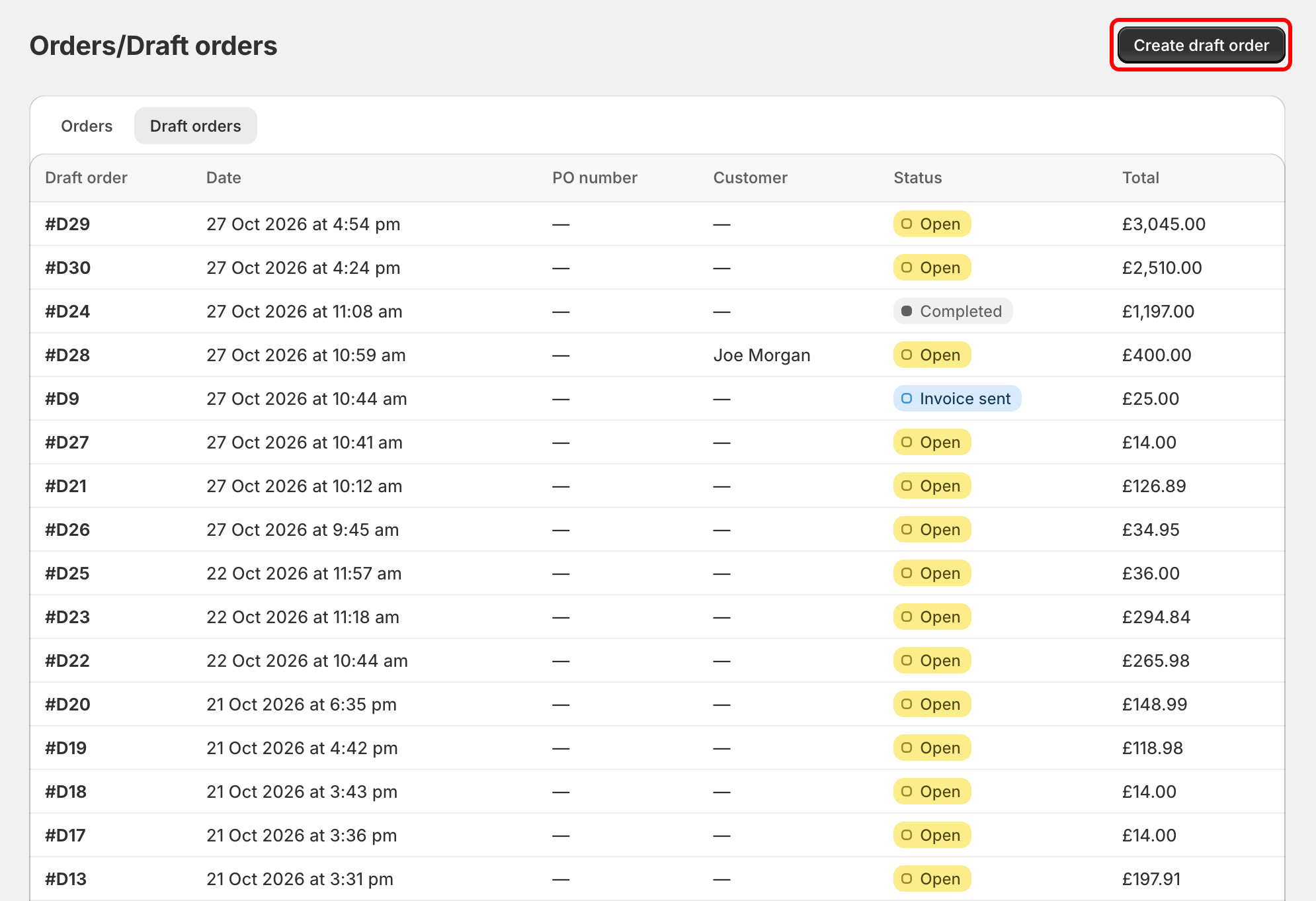
In the POSify Shopify Admin app, navigate to the Orders/Draft orders page in the left menu. Select the Draft orders tab at the top of the table to view all of your draft orders. Click the Create draft order button, or select an existing draft order from the table:
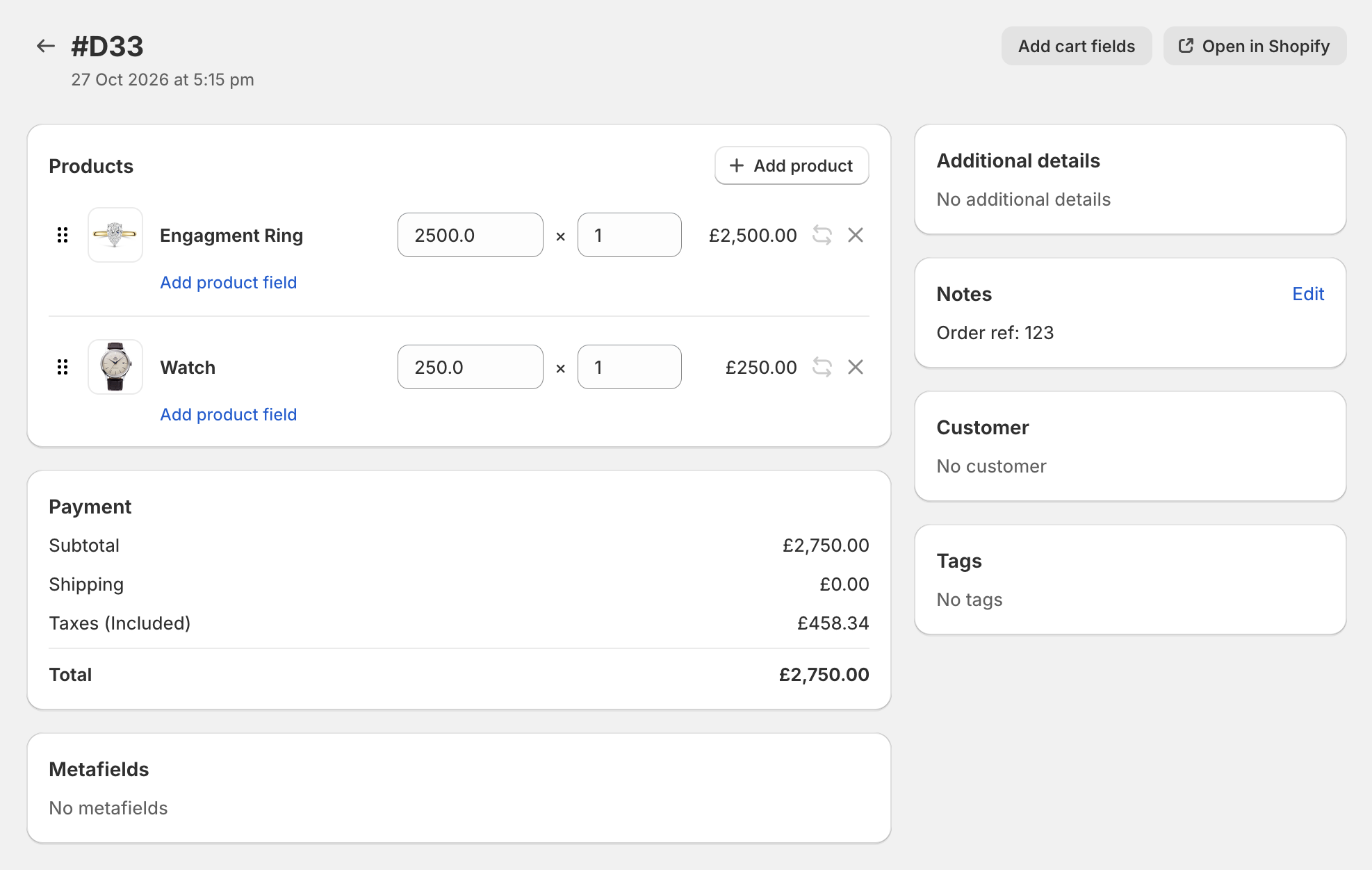
This will load the existing Draft Order, or a blank Draft Order. From here, you are able to add products, cart attributes and notes. Clicking Save will save the Draft Order:
Customizing products
From the Draft Order page, you are able to modify a product's price, quantity, and properties. See the Customizing products in draft orders guide for more information.
Customizing the cart/order
From the Draft Order page, you are able to add cart properties. See the Customizing carts/orders in draft orders guide for more information.