Customizing products in draft orders
After creating your product customization fields and/or field groups, you can begin adding customized products to Draft Orders in Shopify Admin.
Adding a product to the order
Open an existing or create a new Draft Order from the POSify Orders/Draft orders page. Click the + Add Product button to open the product picker:
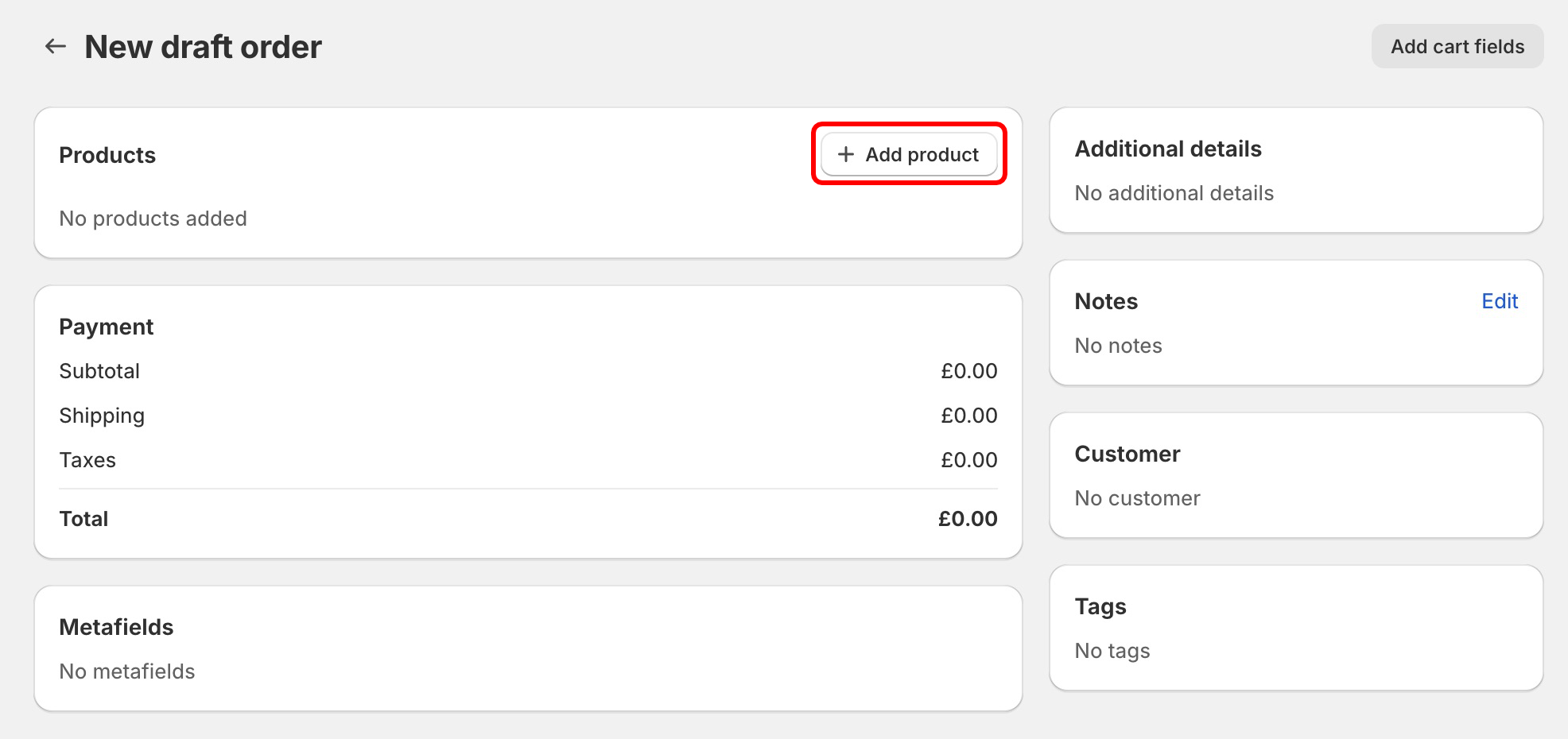
Select which products you'd like to add to the order, and click Add. You're then able to edit the order, price and quantity for each product, if required:
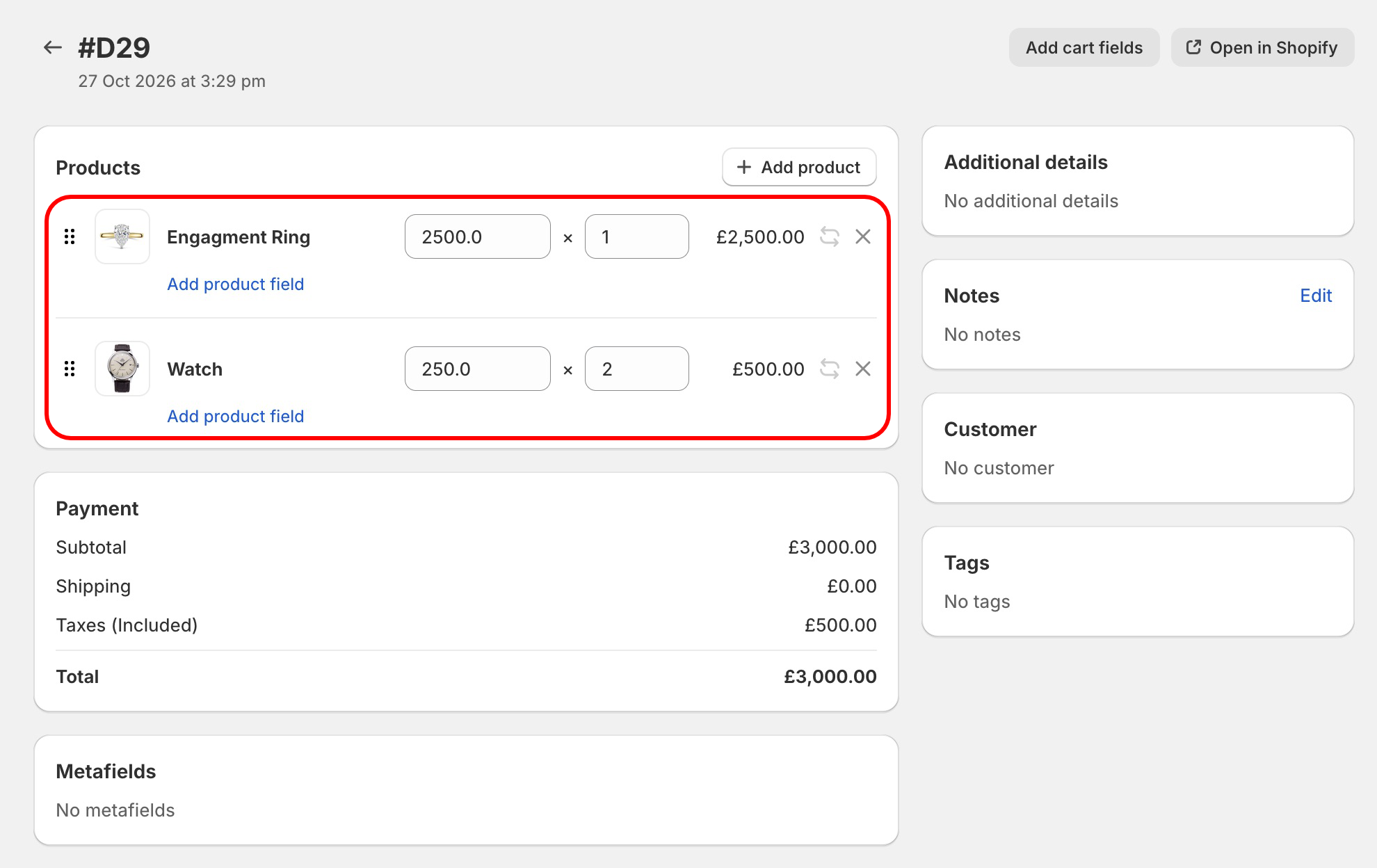
Adding product customizations
After you've added a product to the order, click the Add product field button to begin making customizations:
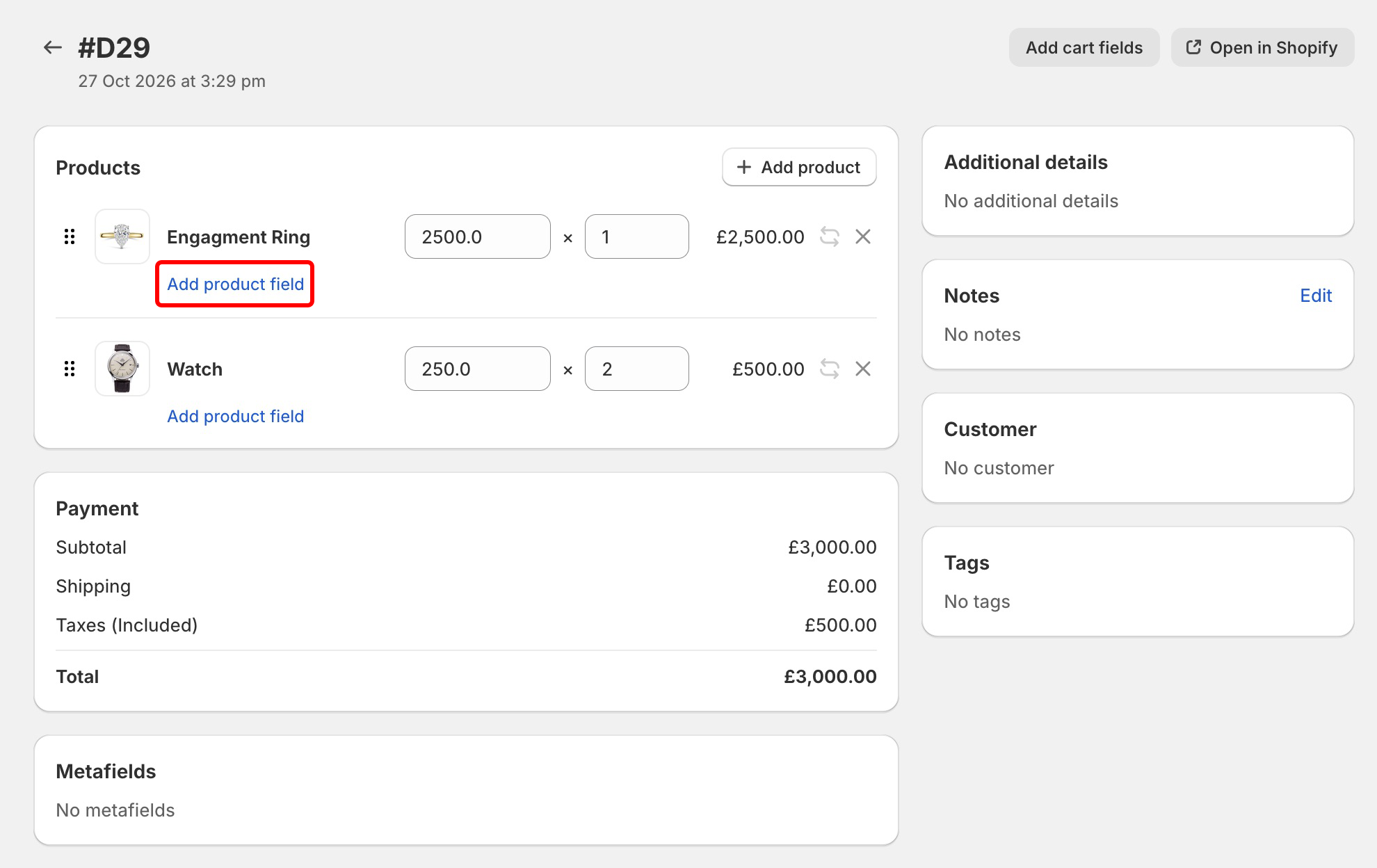
This will open a new modal containing your pre-defined customization fields - add the customization data and click Done:
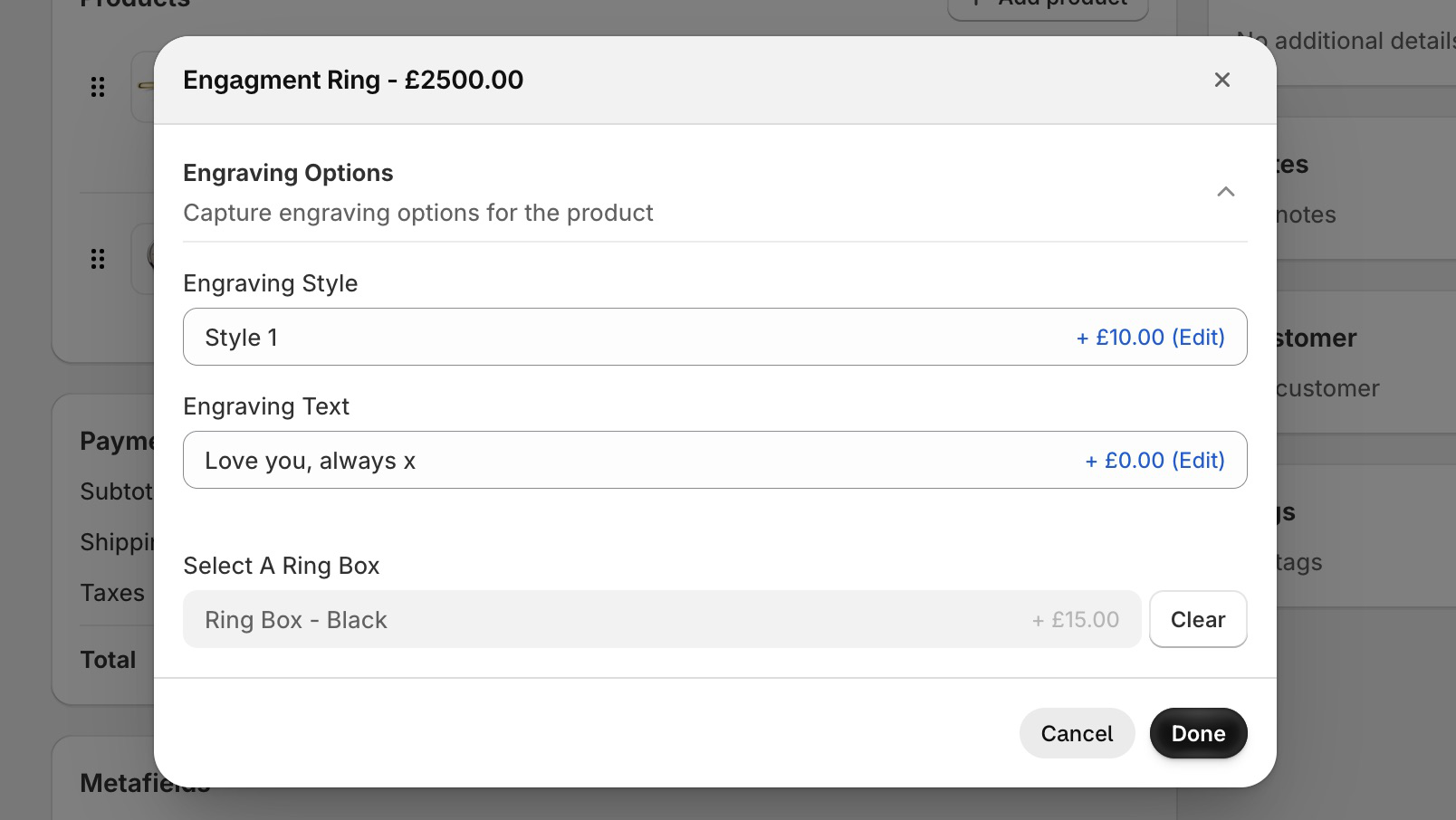
Your customizations will be stored against the product. Any linked products will be added to the order as a new line item:
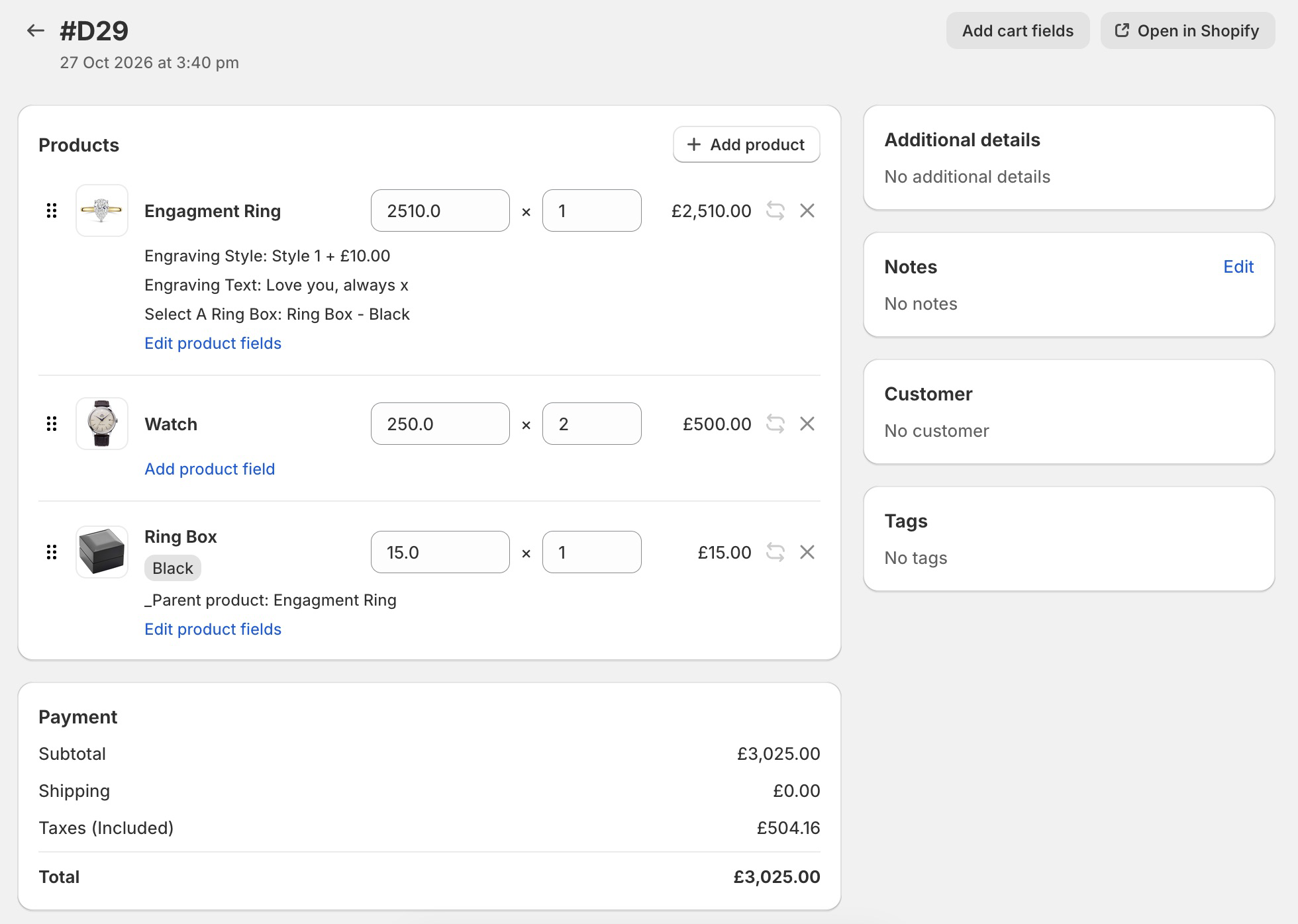
Adding fees to products
In the customization modal, when you add a value to a product customization field with a fee, the fee becomes active:
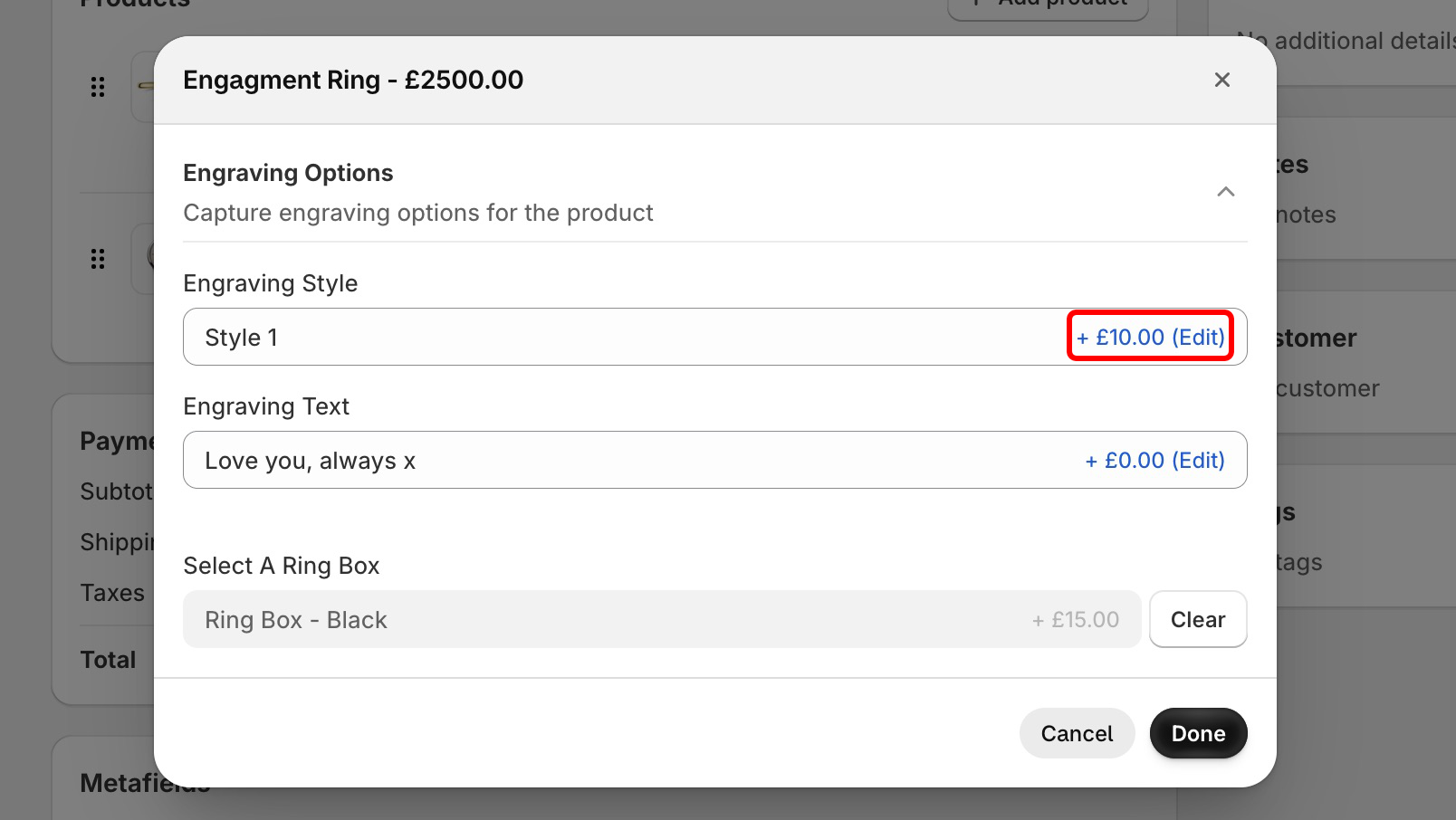
You can edit the fee in real time, by click the the Edit button next to the fee. This will open a new window, allowing you to update the fee:
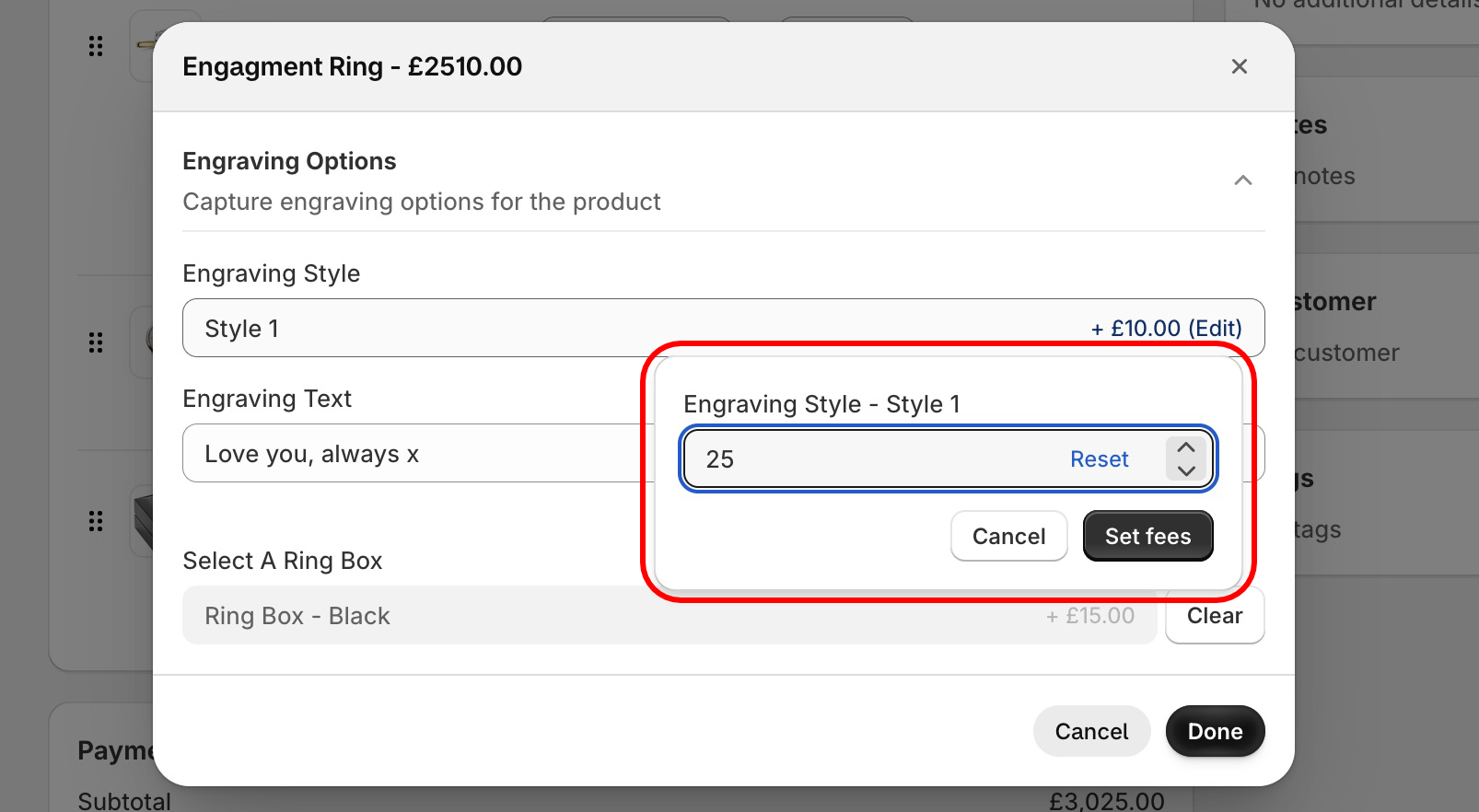
Viewing reference images
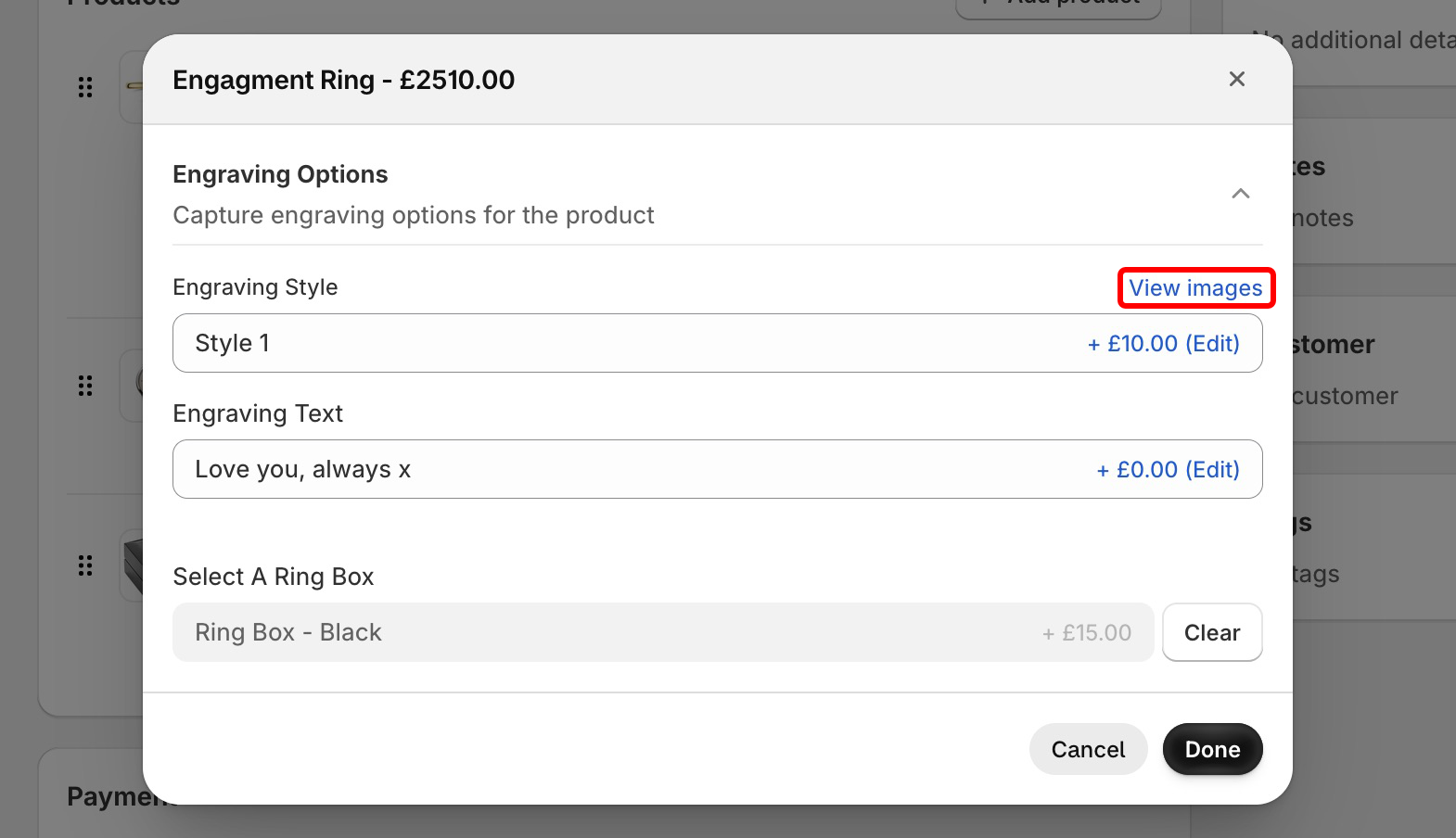
In the customization modal, to view a product's reference images, simply click the View images button, above the field:
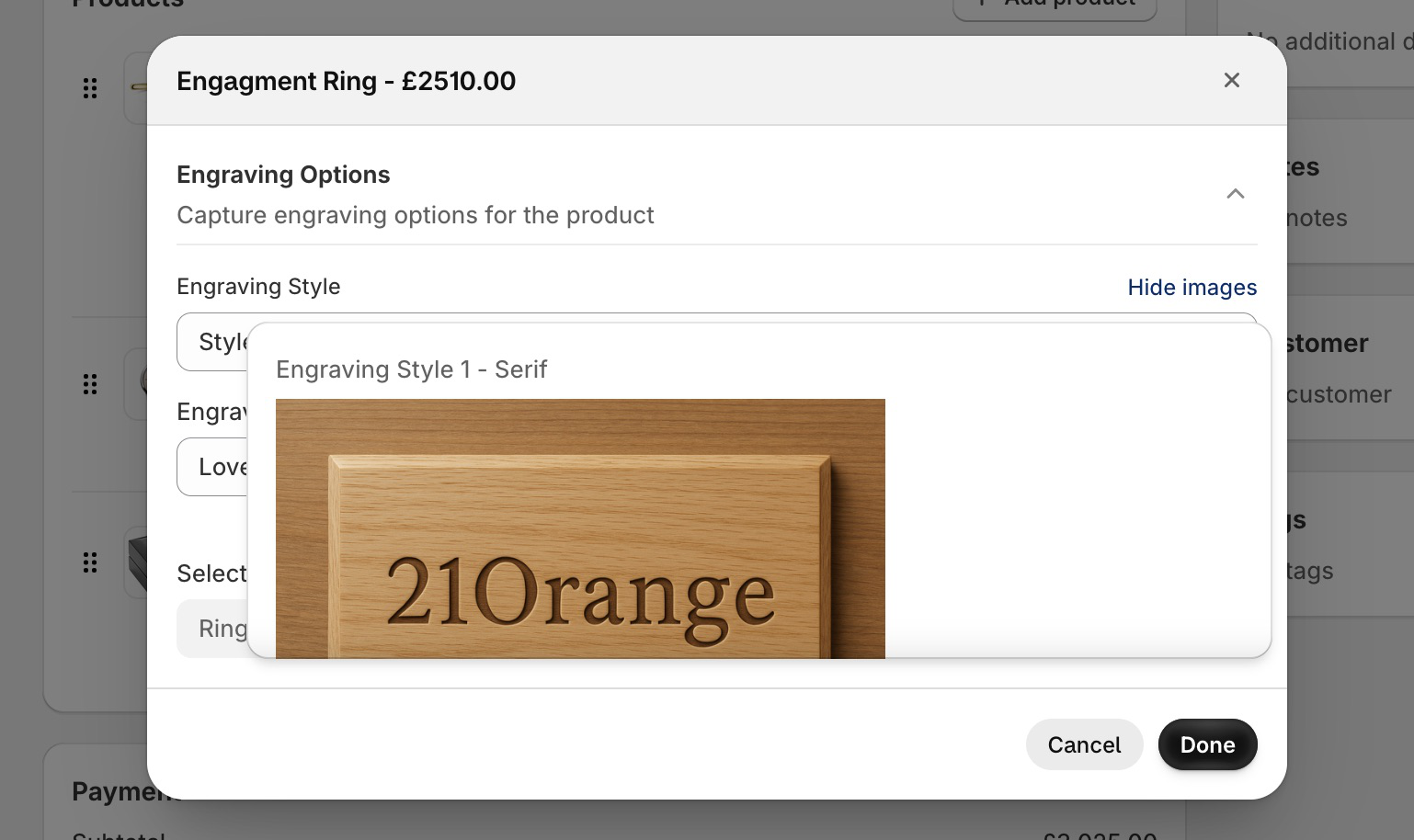
A new window will be displayed, displaying the images in alphabetical order, based on each image's filename:
Accessing the Draft Order in Shopify Admin
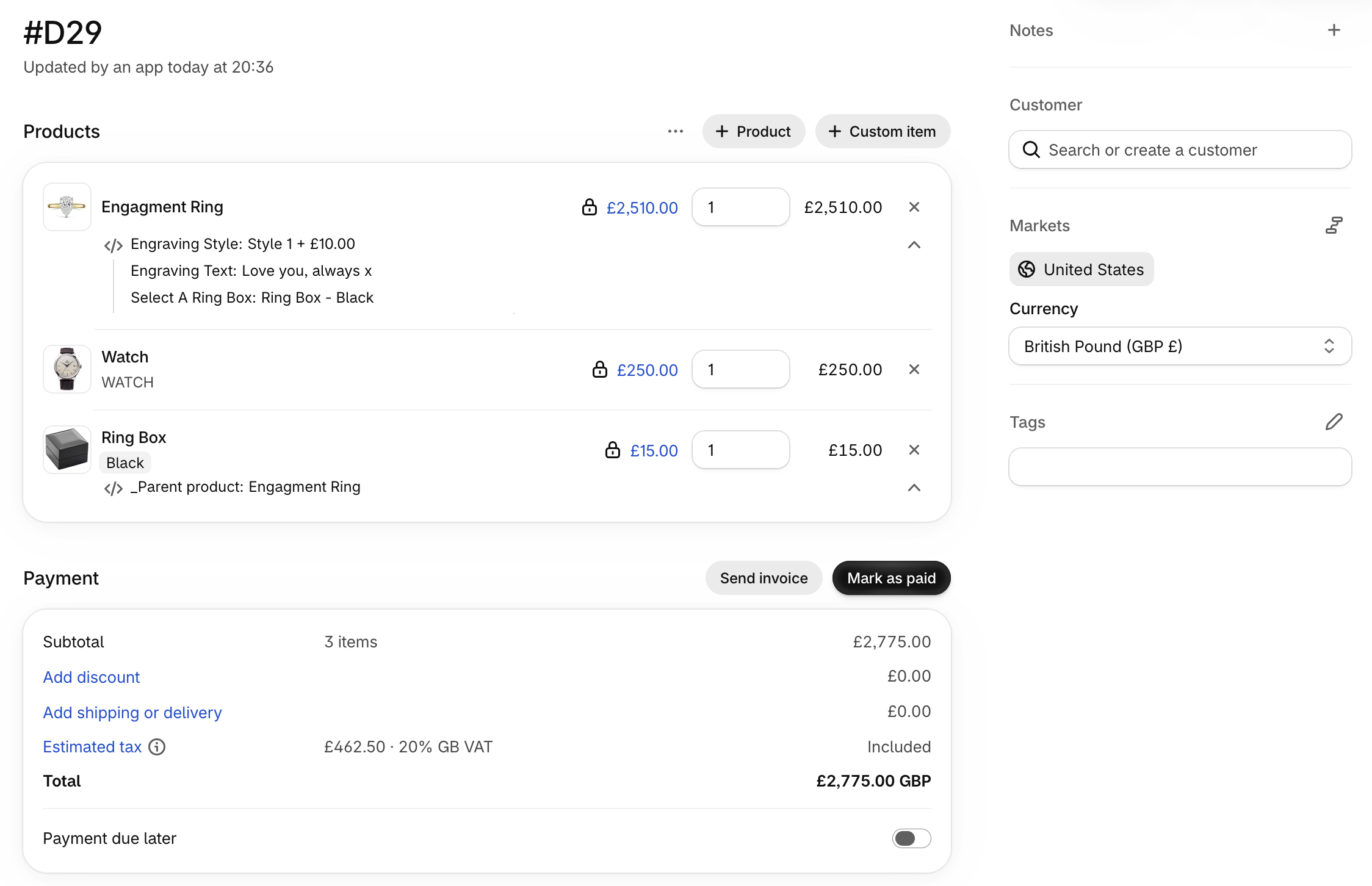
The Draft Order in Shopify Admin will contain all of the products, along with their prices, quantities, and properties. You are then able to send the invoice, or mark the Draft Order as paid, to convert it to an Order.