Customizing carts/orders in POS
After creating your cart customization fields, you can begin adding cart customizations in Shopify POS.
Loading cart fields in POS
Ensure that you've correctly setup POSify in Shopify POS.
The following methods can be used to customize carts/orders with POSify:
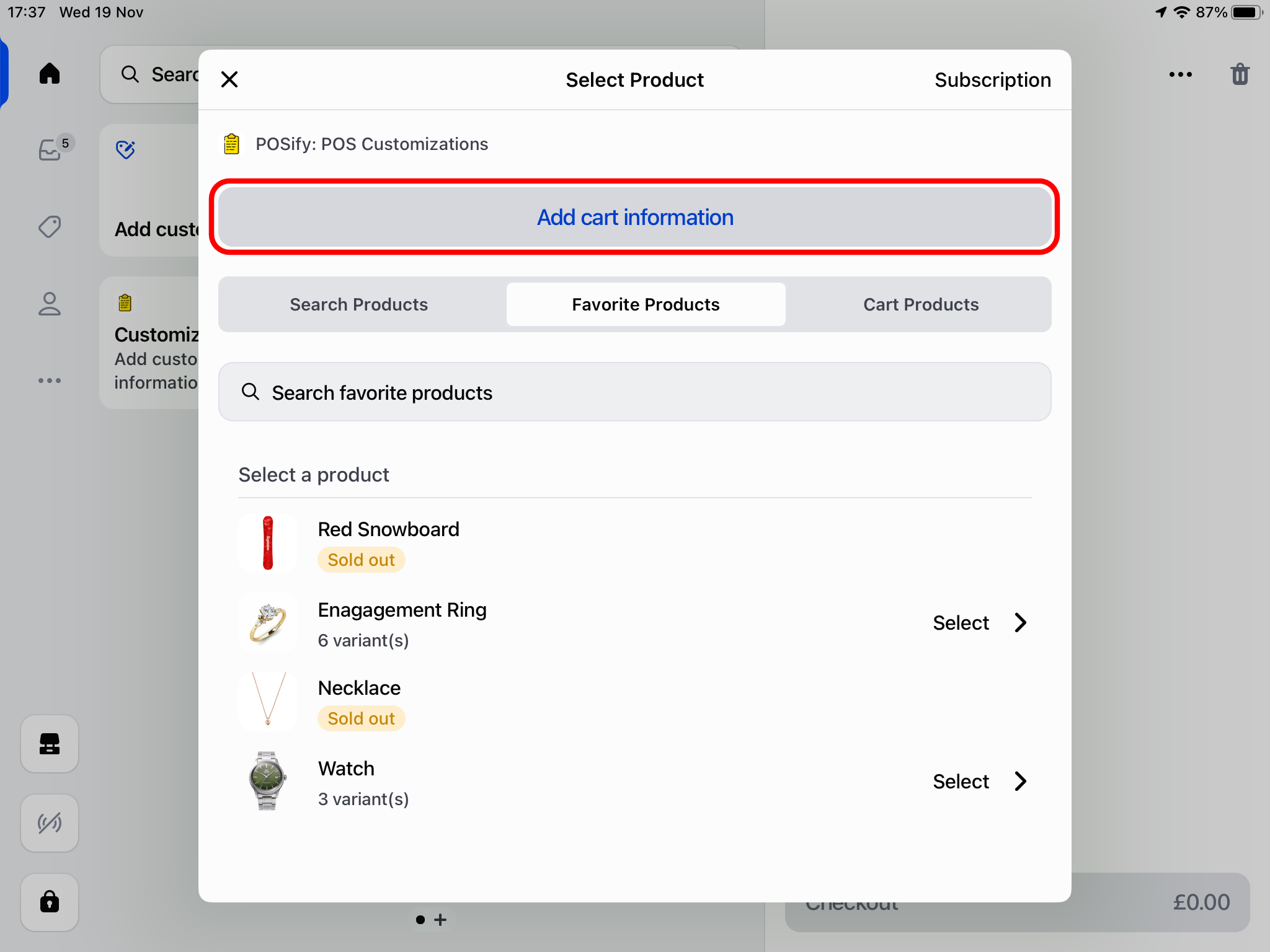
1. POS smart grid tile
Click the POSify POS app tile and click the Add cart information button:
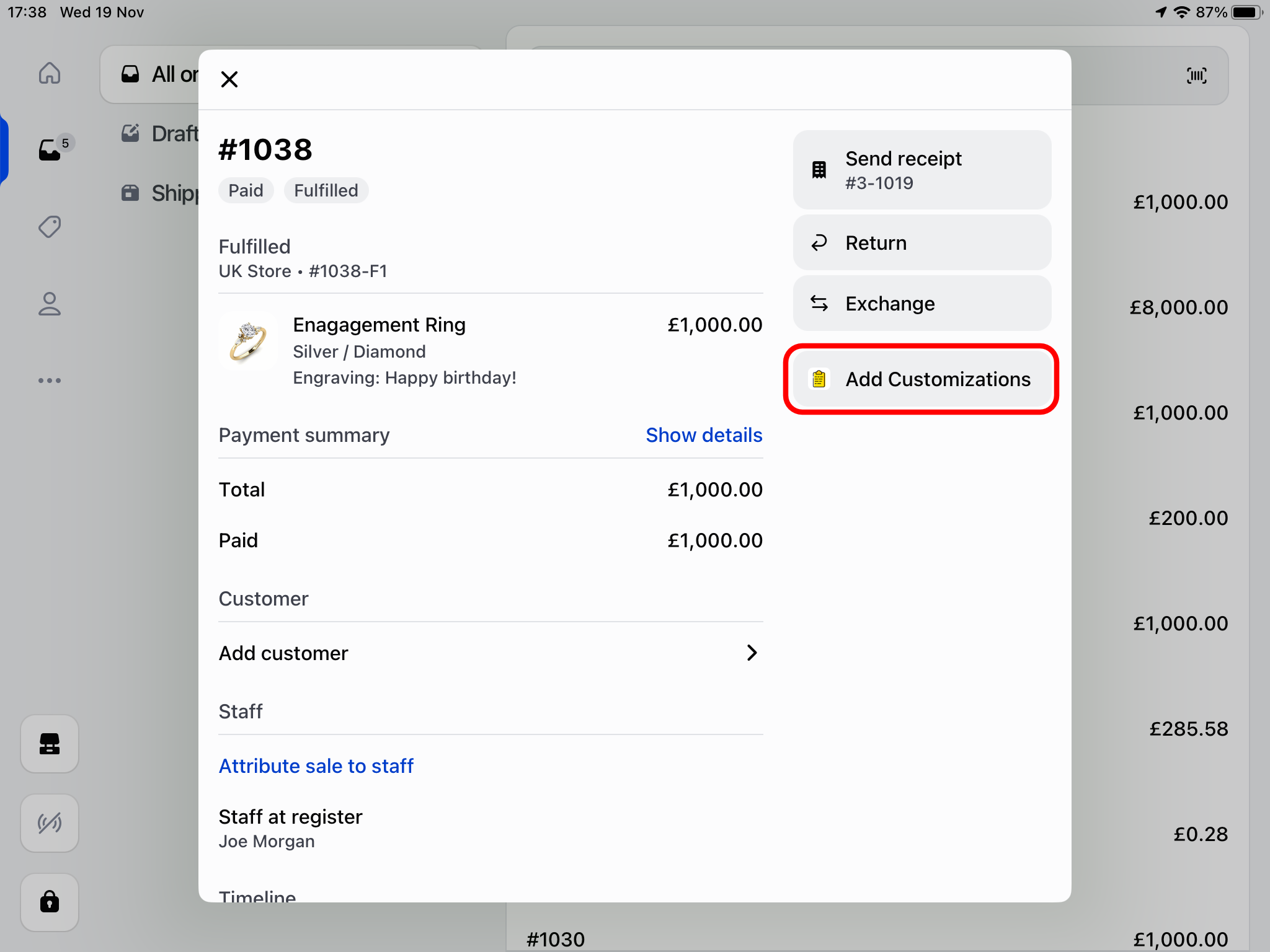
2. Order details menu
Select an order in the POS orders menu and click the Add Customizations button in the action menu:
This will only work for orders less than 60 days old
Adding customizations
Once loaded, you can begin filling in your pre-defined customization fields in the POSify POS app.
Fields will be grouped into your pre-defined field groups, and any ungrouped fields will be listed below:
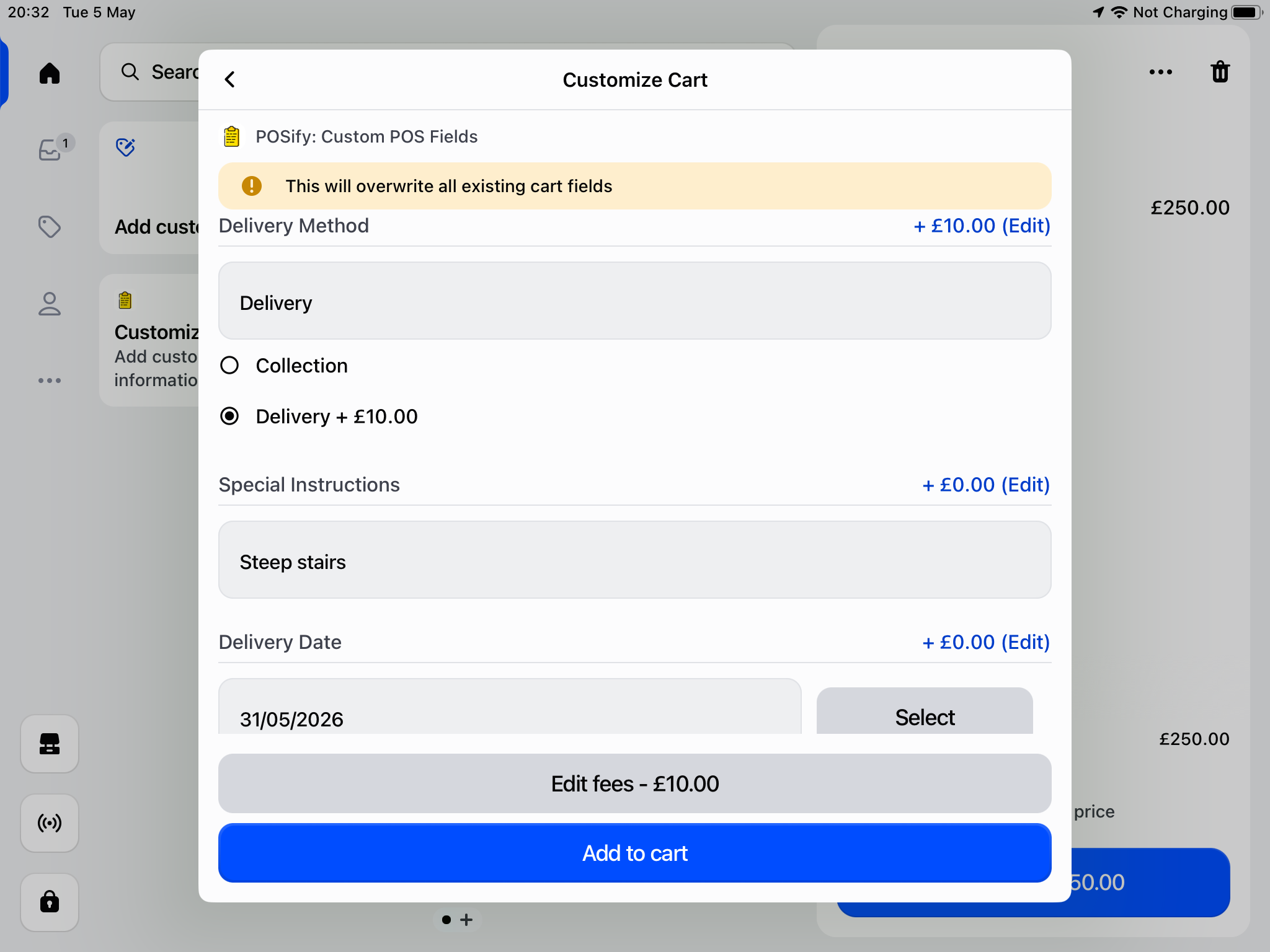
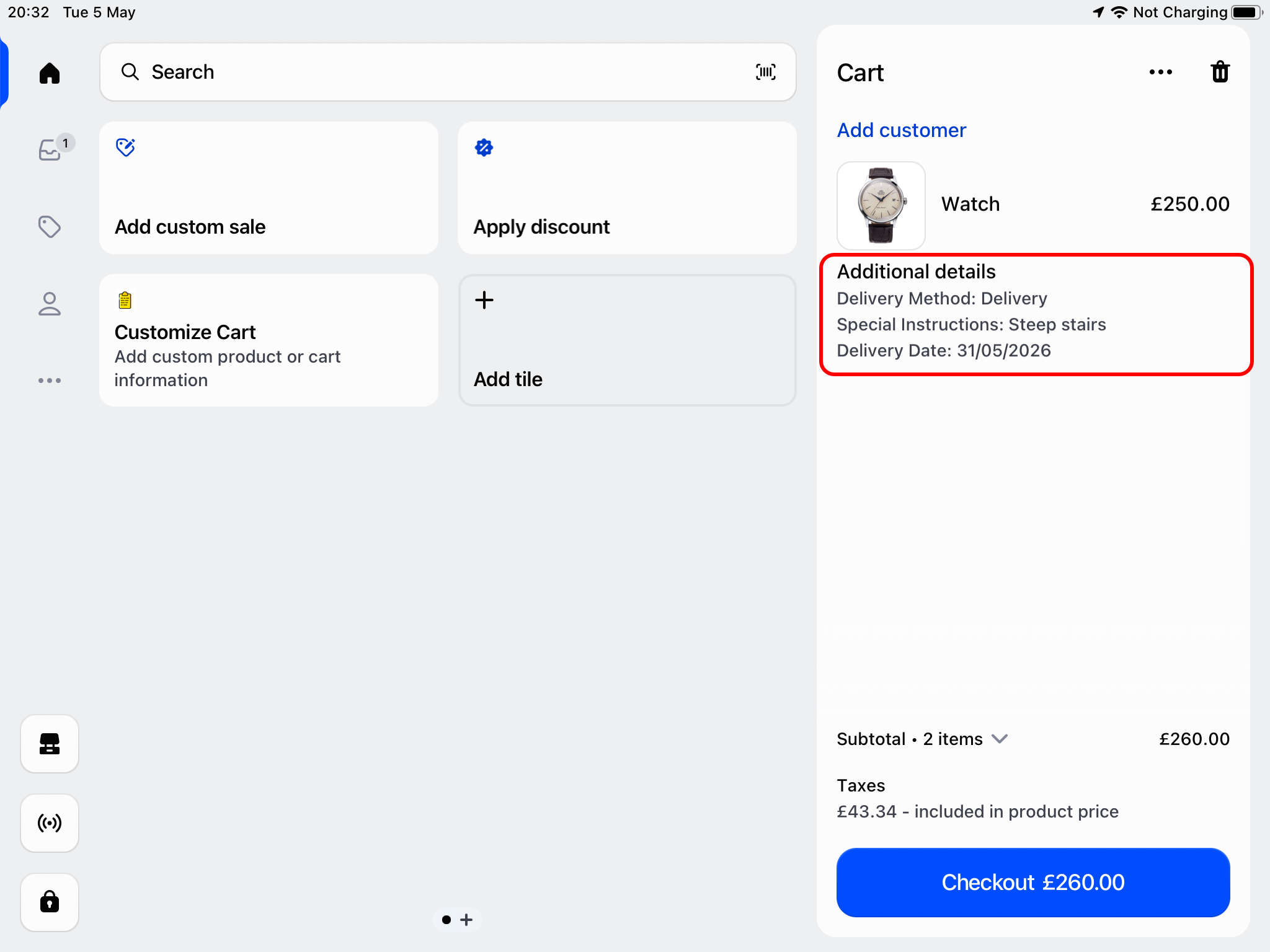
Finally, click the Add to cart button - the customizations will then be added to the POS cart:
Adding fees to the cart
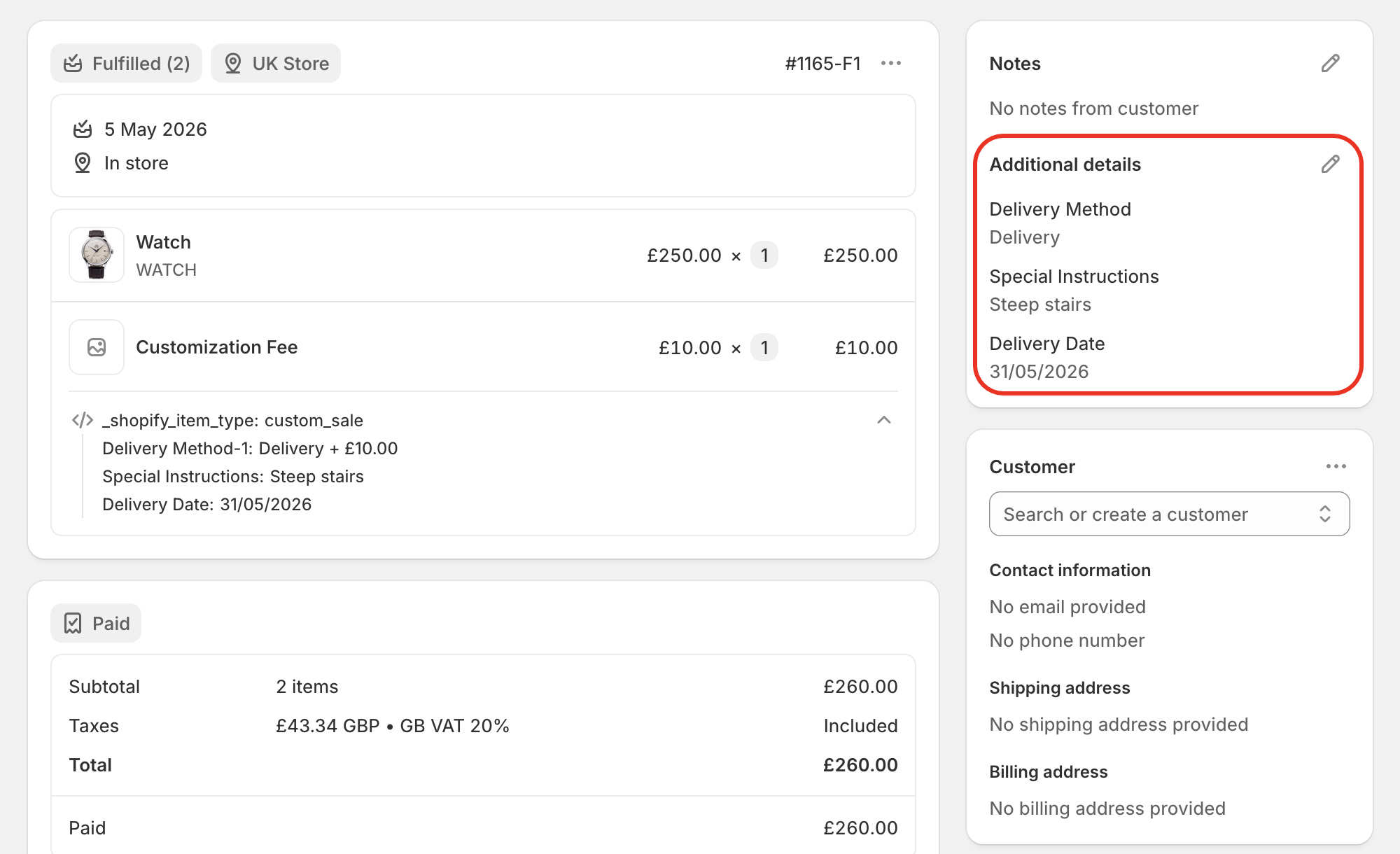
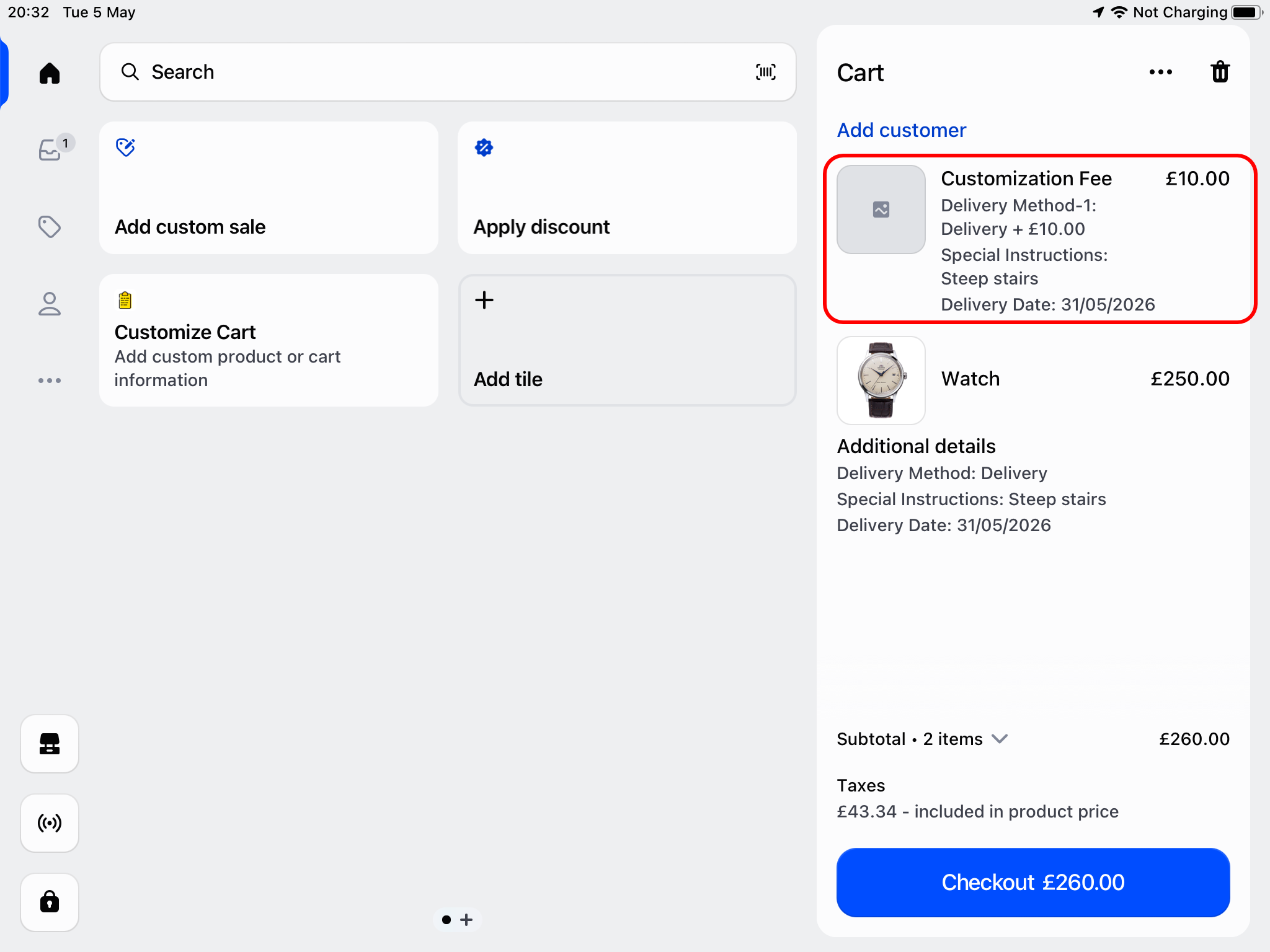
When you add a fee to a cart field, the total fee amount will be added to the cart as a custom sale item:
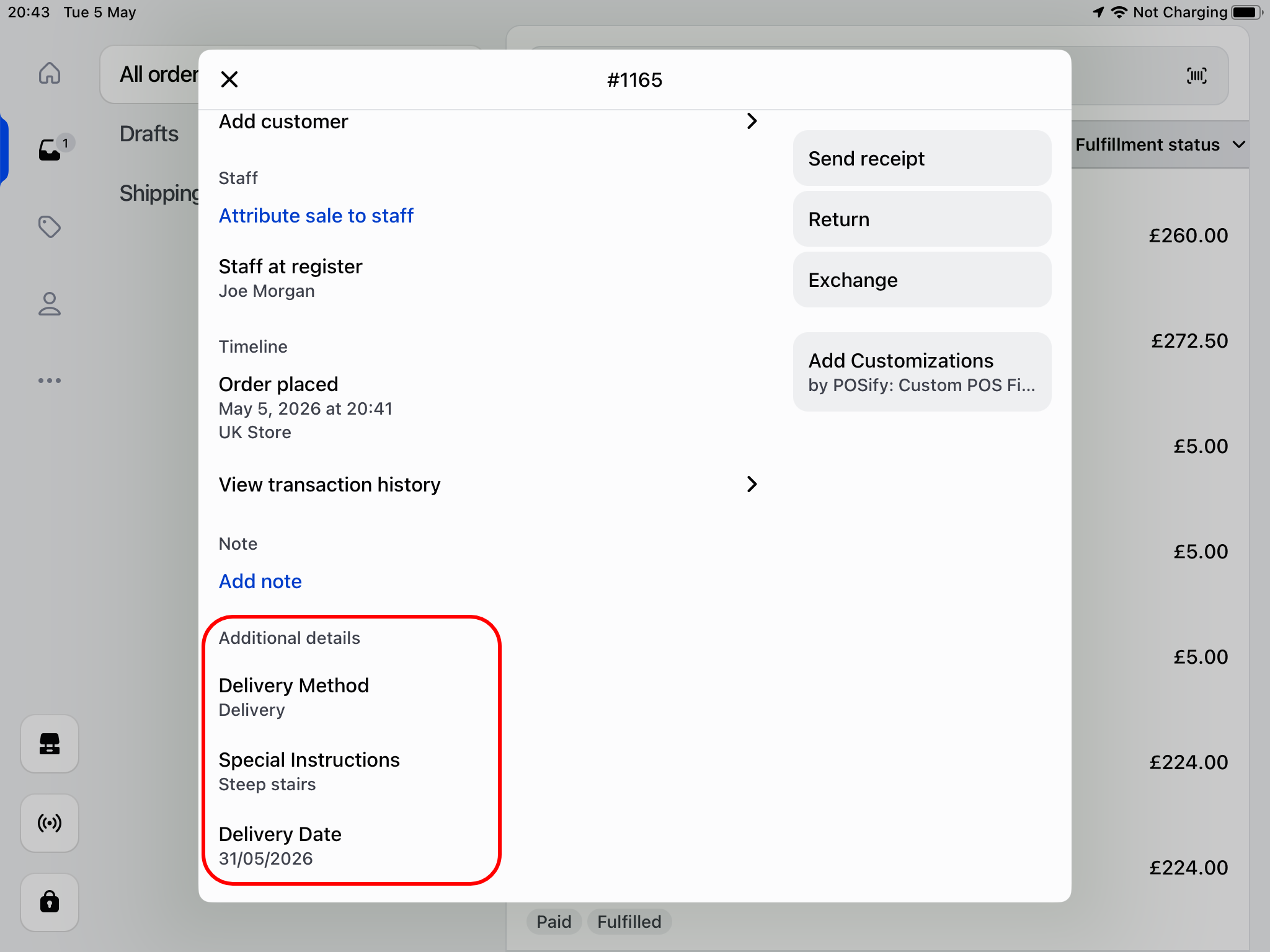
Accessing the values in Shopify Admin & POS
The value of each field is stored as an additional detail/property on the order. These can be seen in both the POS app, and in Shopify Admin: