Creating Field Rules
Field rules can be created in POSify to dynamically show or hide customization fields, based on the value of one or more other fields.
SUBSCRIPTION PLAN
Field rules are only available to customers on the Growth or Pro plan.
Managing field rules
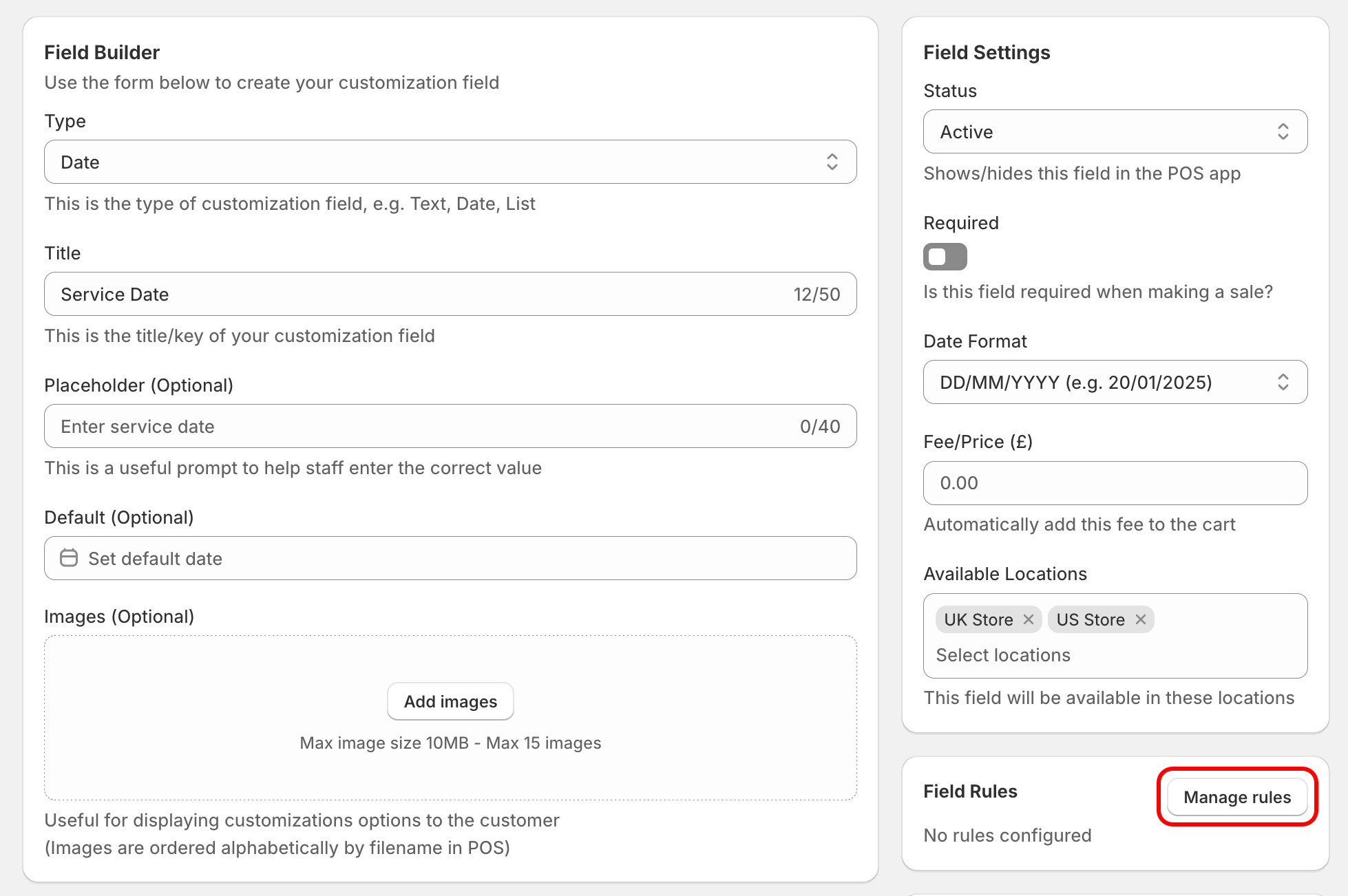
To create a field rule, first create or edit a customization field, and click the Manage rules button:
Building a ruleset
A ruleset is made up of the following:
- Action: Show/Hide - Whether to show or hide the field based on the following rules
- Logic condition: All/Any - Whether any or all of the following rules have to be matched
- Rules: A list of one of more rules, explained below
An individual rule is made up of the following:
- Field: The reference field that is being checked against
- Operator: How the reference field value should be compared to the target value (e.g. is equal to, contains, is greater than)
- Target value: The value of the reference field that is being checked
Multiple rules can be chained together, to create a ruleset.
Available operators
The following operators can be used when creating a rule:
| Operator | Reference Field Type | Example Use Case |
|---|---|---|
| is equal to | Text, Textbox, Number, Date, Time, True/False, List | SKU equals "ABC123" |
| is not equal to | Text, Textbox, Number, Date, Time, List | SKU does not equal "ABC123" |
| contains | Text, Textbox, List | Manufacturer contains "Audi" |
| does not contain | List | Manufacturer does not contain "Audi" |
| is greater than | Number | Resell price is greater than 1000 |
| is less then | Number | Resell price is less than 1000 |
| is before | Date, Time | Service date is before 01/01/2026 |
| is after | Date, Time | Service date is after 01/01/2026 |
Example rulesets
Example 1
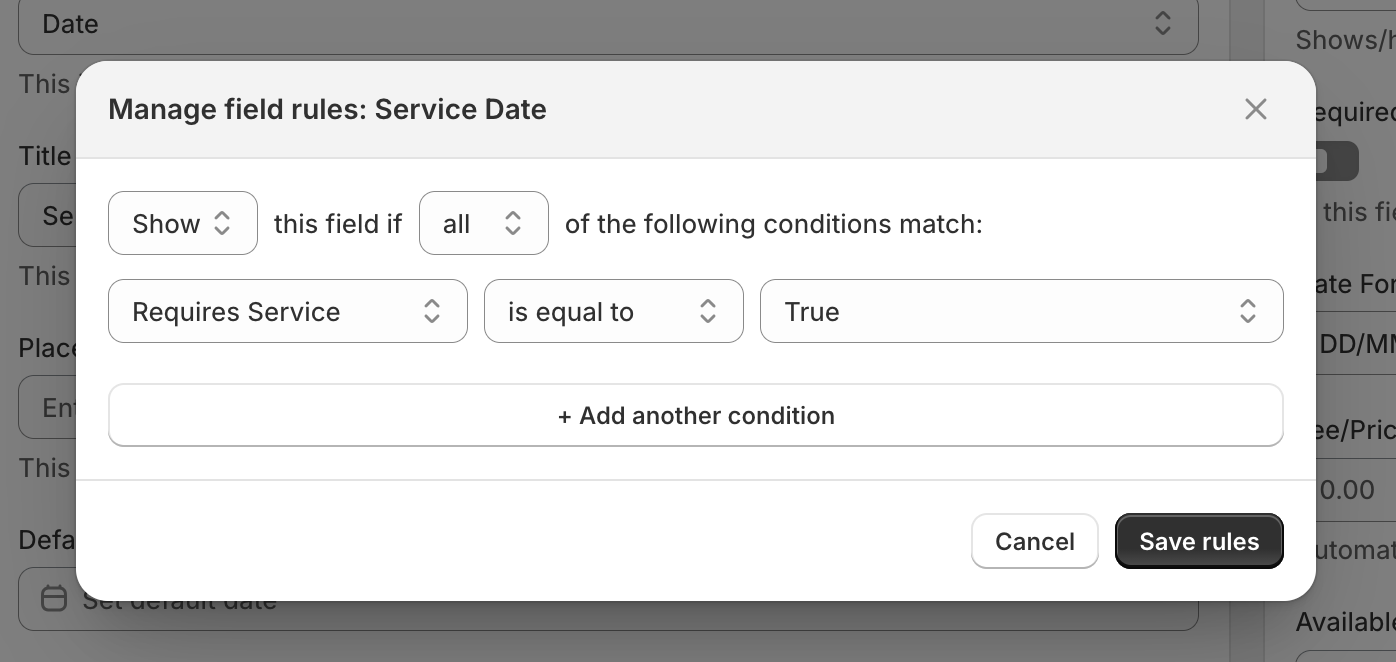
Show the Service Date field, if the Requires Service field is set to True:
Example 2
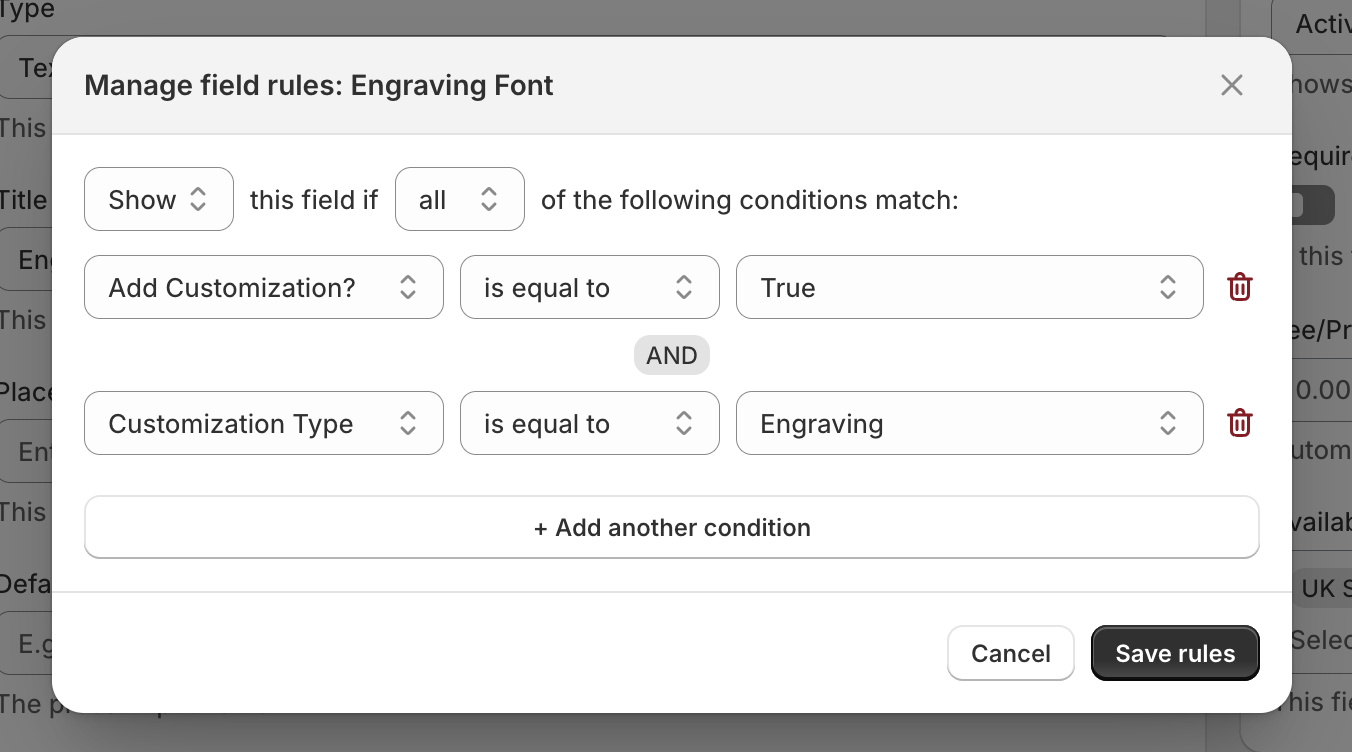
Show the Engraving Font field, if the Add Customization? field is set to True and the Customization Type field is set to Engraving: